
Tariffs and Rates
A Tariff is a logical element in the system which represents the rules for rating and billing the calls made by an Account or Customer. Each Tariff includes a set of Rates that define the prices to be charged for calls to different destinations. Tariffs are created by Customers. Each Customer has its own set of Tariffs it can assign to his own sub-Customers or Accounts. The system ensures that sub-Customers can only see the Tariffs that apply to them directly.
There can be more than one Rate matching a destination number; in such cases, the Rate with the longest prefix is used. For example, if the destination number is 1234567890 and there are two Rates, each with the prefix 1 and 12 respectively, the Rate with the prefix 12 would be selected for rating and billing purposes. It is important to know that Accounts or Customers cannot complete calls to destinations for which a Rate is not configured.
Changes to Rates, Routes, Destination Sets, Tariffs, DID numbers, DID Charging Groups and Routing Groups may not be applied immediately. You need to wait at least for 1 minute before the system can update its internal "cache". Sometimes; for example, in case of a heavy bulk update of multiple destination sets, it may be necessary to wait more than 1 minute. Read more about System Cache... |
Related documentation:
Local Calling - Inter- and Intra-State Rating
Tariff - Loss Protection, Average Call Duration, Margin Based Routing
Improvements to DID Charging and Authentication in Sippy Softswitch 2020
Understanding Rating and Billing
Adding, Updating, and Deleting a Tariff
On the Tariffs page (shown below), you can create a new Tariff, create a Tariff based on an existing one, update an existing Tariff, or delete a Tariff. The list displays the Status, Name, Type, Currency, and Action columns.
A warning icon in the Status column indicates that Loss Protection is disabled for that Tariff.
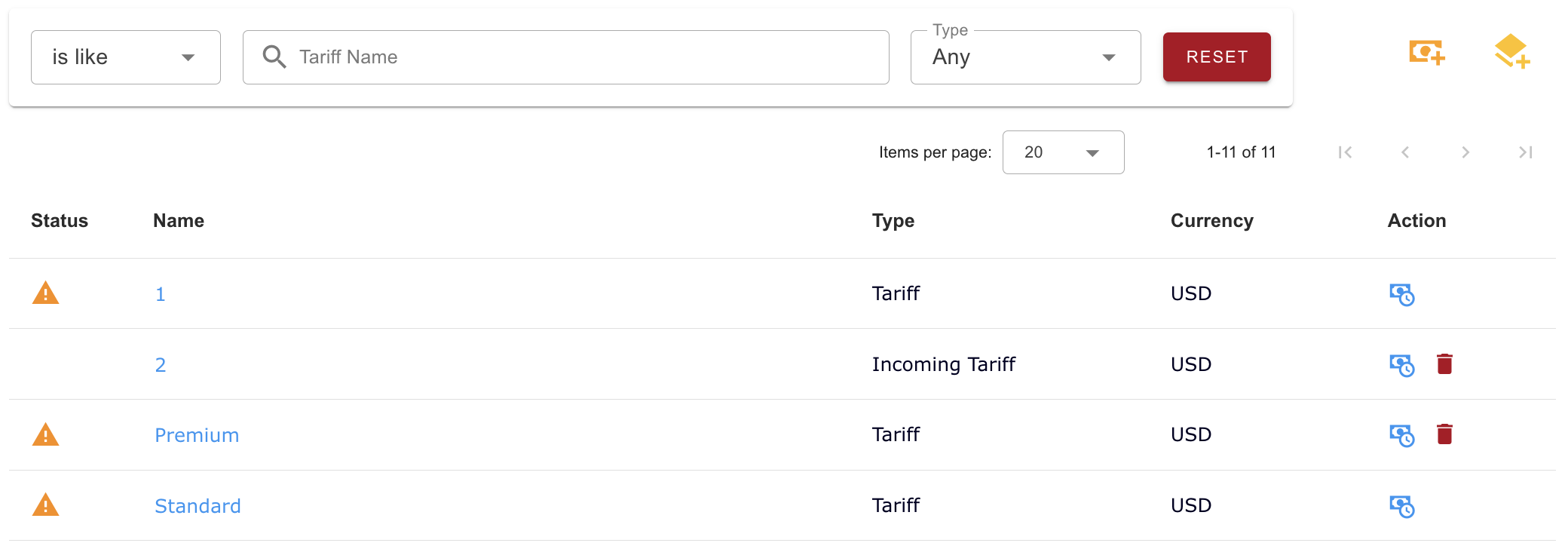
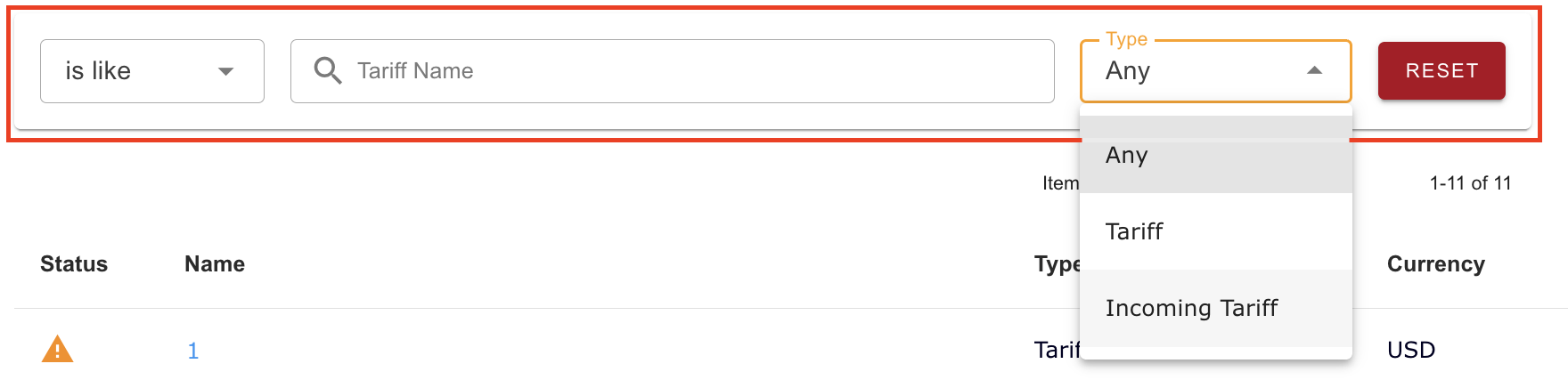
To find a particular Tariff, use the Tariff Name filter with the "is like" or "is not like" option. You can also filter the list by Type: Any, Tariff, or Incoming Tariff. Filters are applied automatically. Click Reset to clear the filters.
Create Tariff
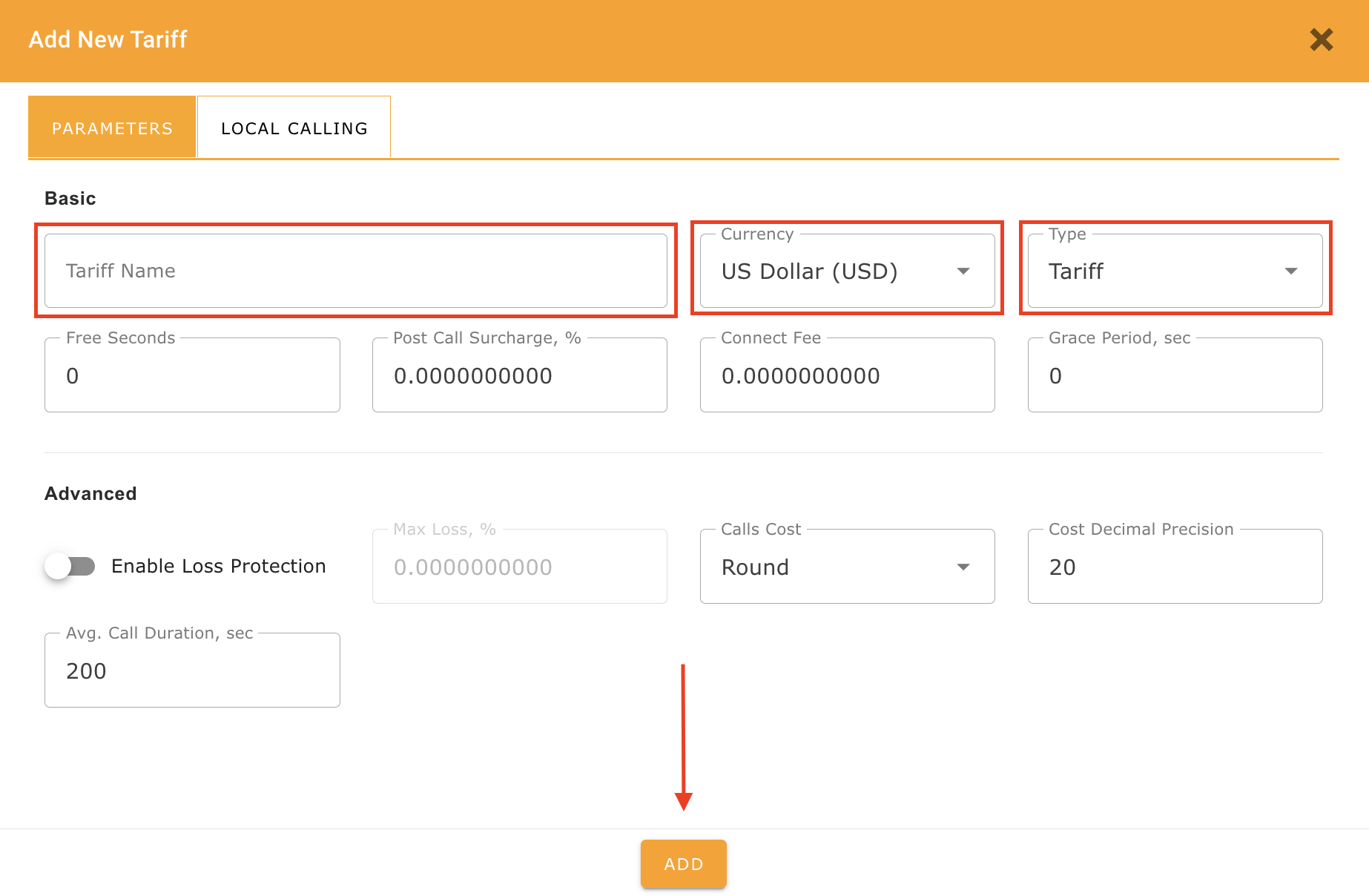
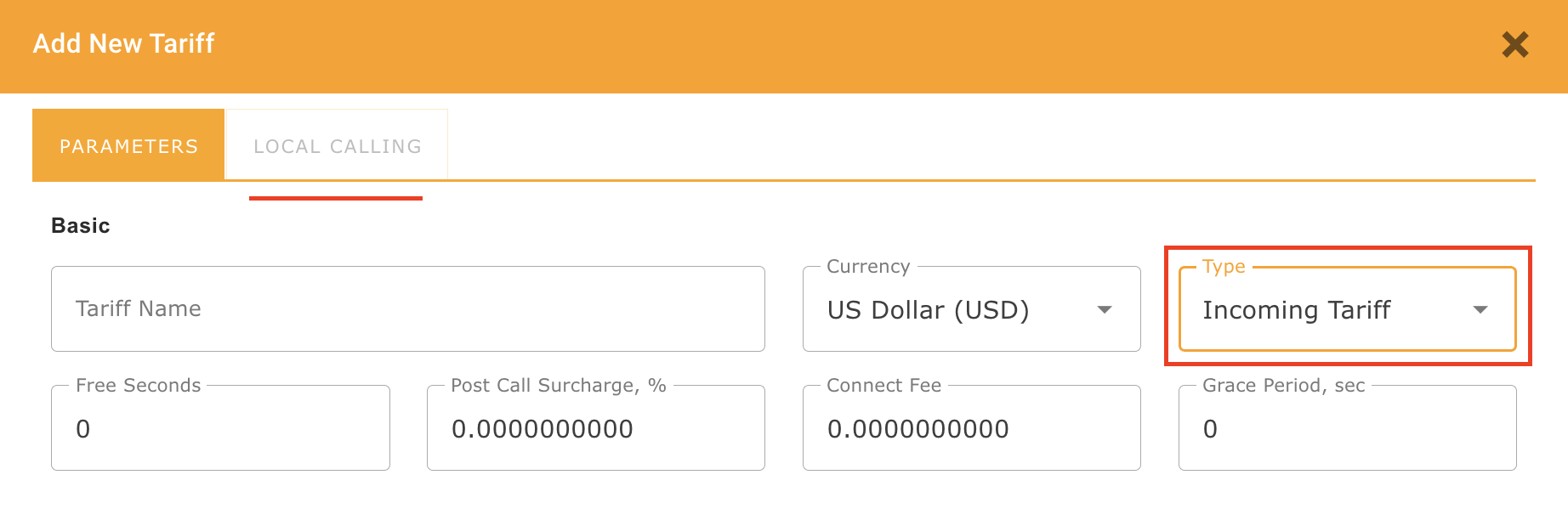
To add a new Tariff, click the Add New Tariff icon (the banknote with a plus sign) in the upper-right corner of the Tariffs page. The Add New Tariff dialog will open with the Parameters tab selected. Enter a Tariff Name and review or adjust the pre-filled values in the Basic and Advanced sections as needed.
Note: The Currency and Type cannot be changed after the Tariff has been created.
When you are done, click Add. The new Tariff will appear in the Tariffs list.
Basic Parameters
| Field | Description |
|---|---|
| Tariff Name | Name used to identify the Tariff. Maximum length: 64 characters. |
| Currency | Currency used for billing. The system's base currency is selected by default. |
| Type | Specifies whether the Tariff is a regular Tariff or an Incoming Tariff. |
| Free Seconds | Number of free seconds configured for calls billed under this Tariff. Default: 0. |
| Post Call Surcharge, % | Additional percentage applied to the calculated call cost. Default: 0. |
| Connect Fee | Fixed amount charged for a successfully connected call, in the Tariff's currency. Default: 0. |
| Grace Period, sec | Duration of the grace period in seconds. It applies when Grace Period is enabled for the corresponding Rate. Default: 0. |
Advanced Parameters
(The Advanced section is available for regular Tariffs)
| Field | Description |
|---|---|
| Enable Loss Protection | Enables protection against calls that could result in losses exceeding the configured threshold. Disabled by default. |
| Max Loss, % | Specifies the maximum permitted loss percentage when Loss Protection is enabled. Allowed values: -100% to 100%. Positive values allow a specified loss, while negative values can be used to require a minimum profit margin when Least Cost Routing is enabled. |
| Calls Cost | Defines the call cost rounding method: Round or Round-Up. Round is selected by default. |
| Cost Decimal Precision | Number of decimal places used when rounding the calculated call cost. Allowed values: 0 to 20. The initial value is inherited from System Parameters - Billing Tariffs Cost Precision. |
| Avg. Call Duration, sec | Estimated call duration used for preliminary call cost calculations and balance allocation. Default: 200 seconds. |
(For further details about Loss Protection, Average Call Duration, and call cost rounding, see the related documentation linked above).
Local Calling
The Local Calling tab is available for regular Tariffs and allows you to configure local call rating.
When Local Calling is enabled, the system can apply separate local prices and billing intervals based on the caller's number (CLI), destination number (CLD), and the Area/State Name configured in the corresponding Rates.
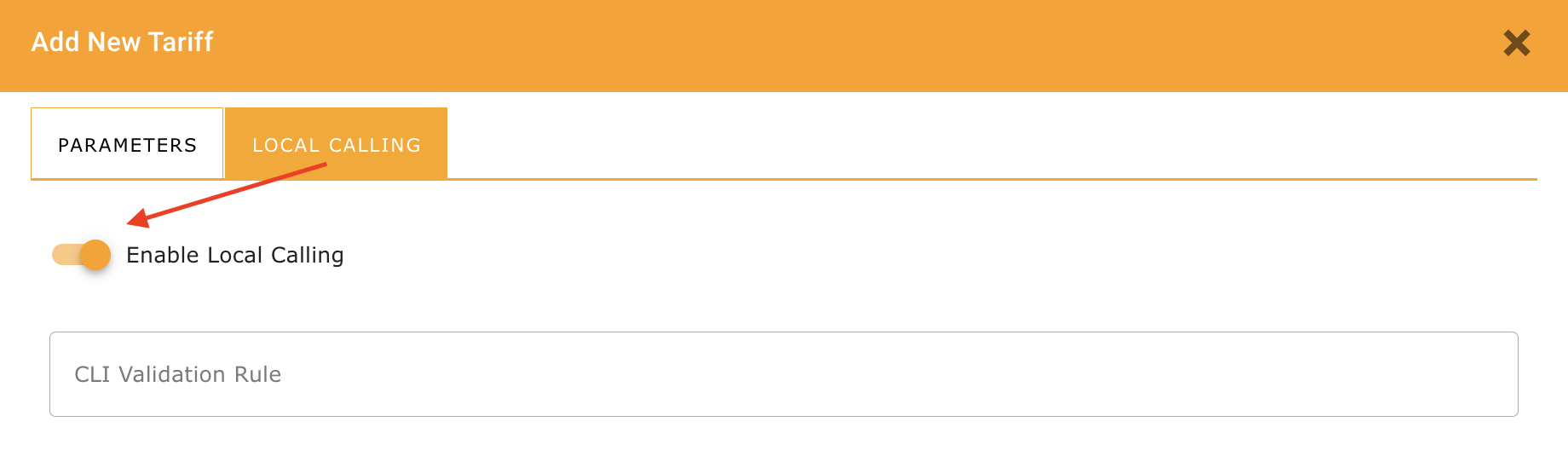
To enable this feature, open the Local Calling tab and activate Enable Local Calling. The CLI Validation Rule field becomes available when Local Calling is enabled. This optional field accepts a regular expression used during the local call detection process. Local prices and billing intervals are configured separately in the individual Rate settings.
For a detailed explanation of local call detection and configuration examples, see Local Calling - Inter- and Intra-State Rating.
Incoming Tariff
An Incoming Tariff is used to charge incoming calls to DID numbers based on the caller's number (CLI), rather than the destination number (CLD). Incoming Tariffs are associated with Selling DID Charging Groups. Rates configured for an Incoming Tariff are matched against the caller's CLI using prefix matching. A special prefix, "default", is used when no other prefix matches. If no default Rate is explicitly configured, a zero-price default is assumed.
To create an Incoming Tariff, click the Add New Tariff icon (the banknote with a plus sign) in the upper-right corner of the Tariffs page. In the Add New Tariff dialog, select Incoming Tariff in the Type field. When Incoming Tariff is selected, the Advanced section is hidden and the Local Calling tab is disabled. The Forbidden option does not apply to Rates belonging to an Incoming Tariff and is therefore not available in their Rate settings.
Adding a Tariff Based on an Existing Tariff
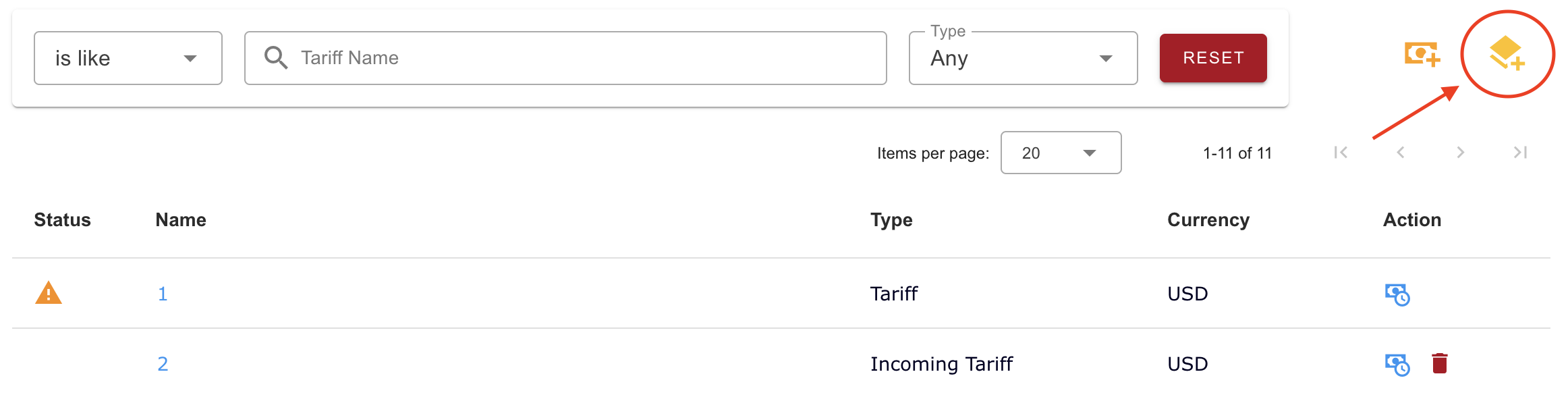
To create a Tariff based on an existing one, click the Add Based on Existing icon (stacked layers with a plus sign) in the upper-right corner of the Tariffs page.
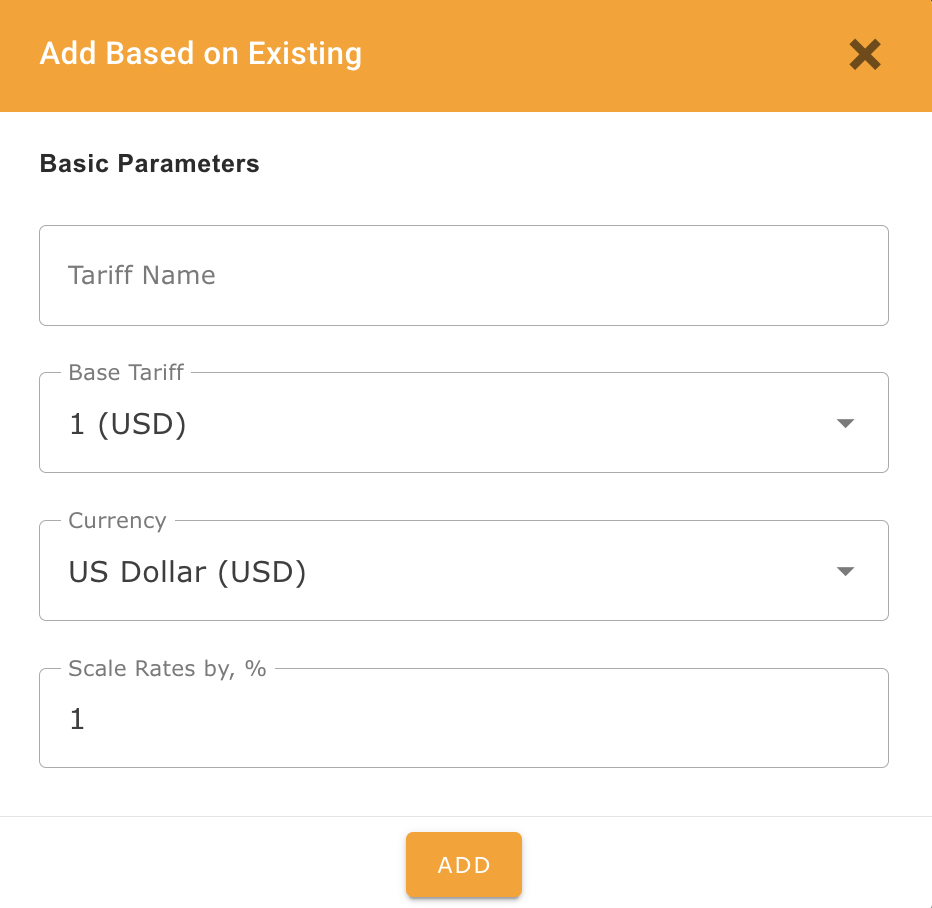
In the Add Based on Existing dialog, enter a Tariff Name, select the Base Tariff and Currency, and specify the value in the Scale Rates by, % field. The Scale Rates by, % field defines how the copied Rate prices are adjusted. The default value is 1, which increases the prices by 1%. Enter 0 to copy the prices without a percentage increase. Negative values are not allowed. If a different Currency is selected, the Rate prices are converted using the configured exchange rates. The system copies currently active and future-dated Rates from the selected Base Tariff. Expired Rates are not copied. Click Add to create the new Tariff.
Updating an Existing Tariff
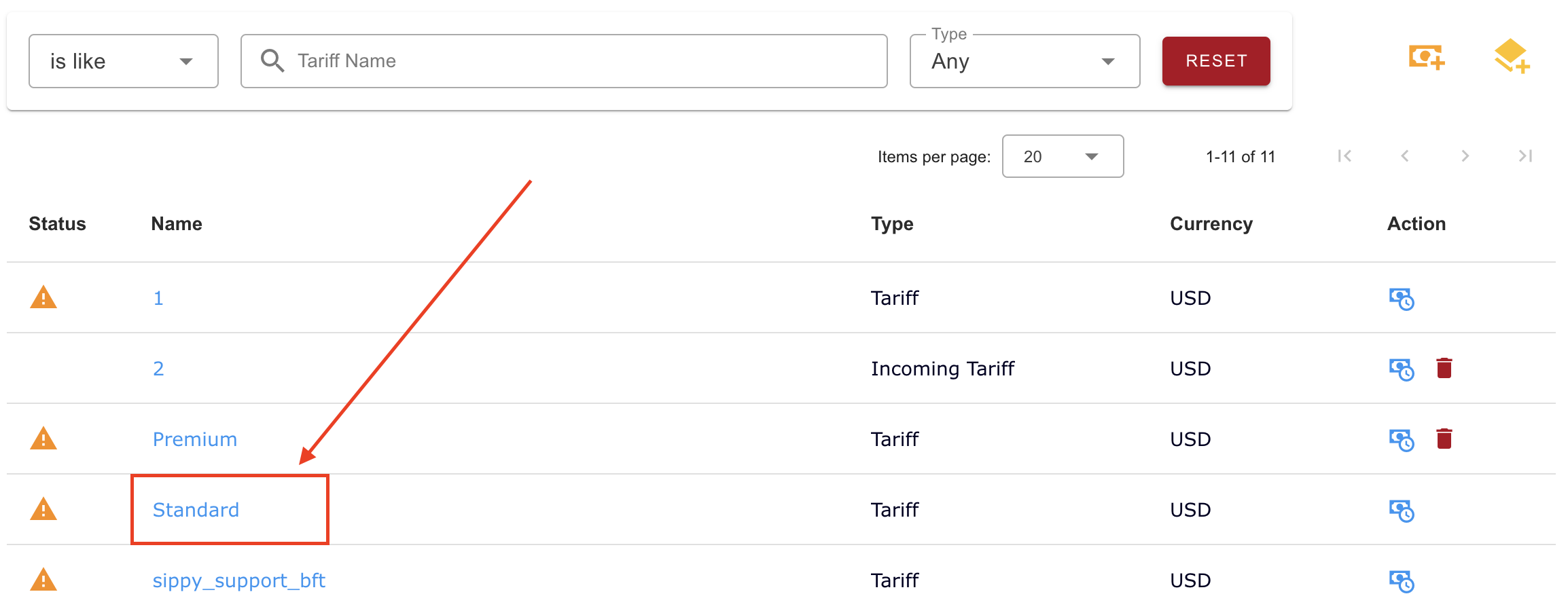
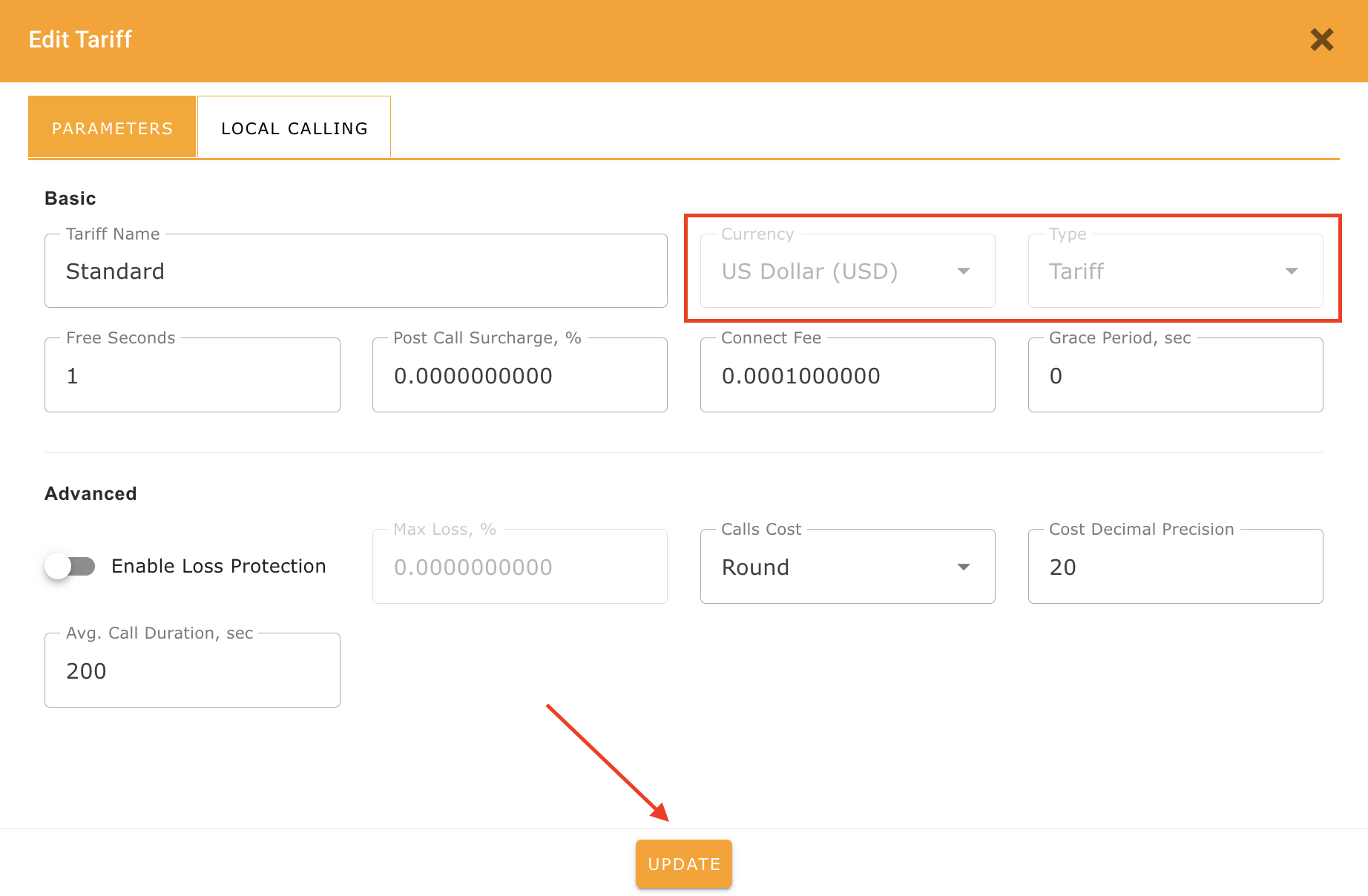
To update an existing Tariff, click its name in the Tariffs list. The Edit Tariff dialog will open.
You can modify the available settings in the Parameters and Local Calling tabs.
The Currency and Type fields are read-only and cannot be changed after the Tariff has been created.
When you are done, click Update to save your changes. The Edit Tariff dialog will close, and the Tariffs list will refresh.
Deleting an Existing Tariff
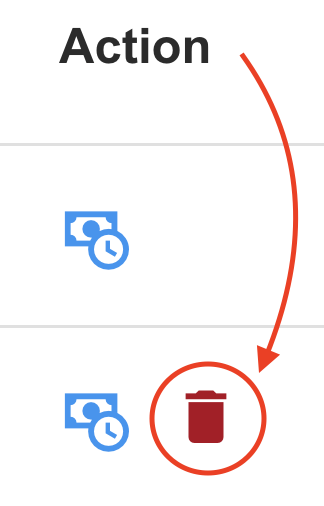
To delete a Tariff, locate it in the Tariffs list and click the red Delete (trash) icon in the Action column. The Delete icon is not displayed if the Tariff has dependencies.
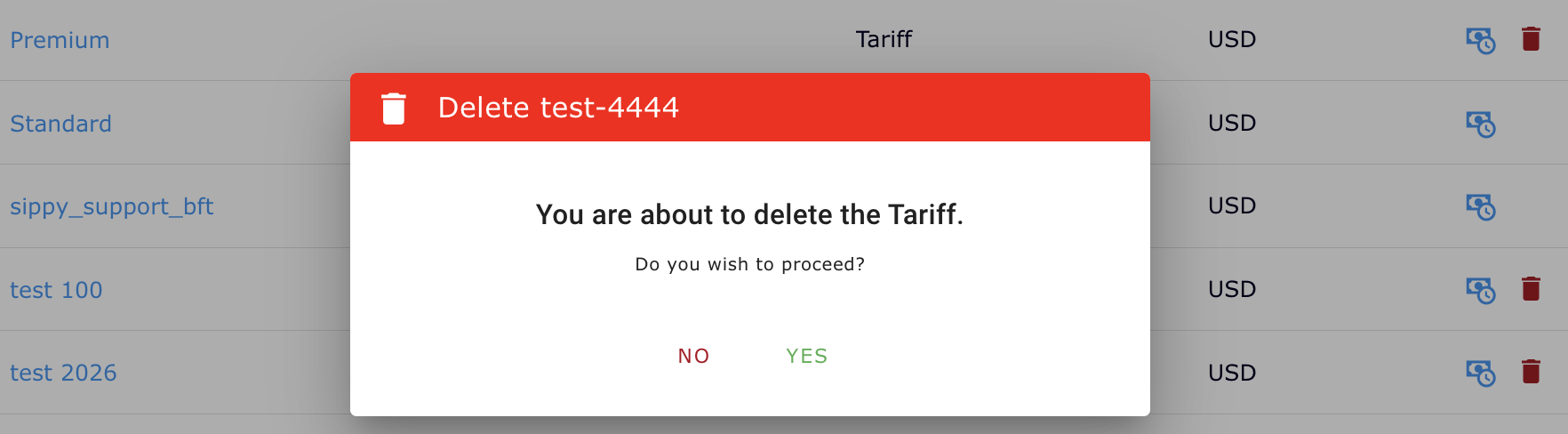
A confirmation dialog will appear. Click Yes to confirm the deletion or No to cancel the operation.
Adding, Updating, and Deleting Rates
To manage Rates for a Tariff, locate the corresponding Tariff in the Tariffs list.
In the Action column, click the blue Open Rates icon (the banknote with a clock) next to the selected Tariff.
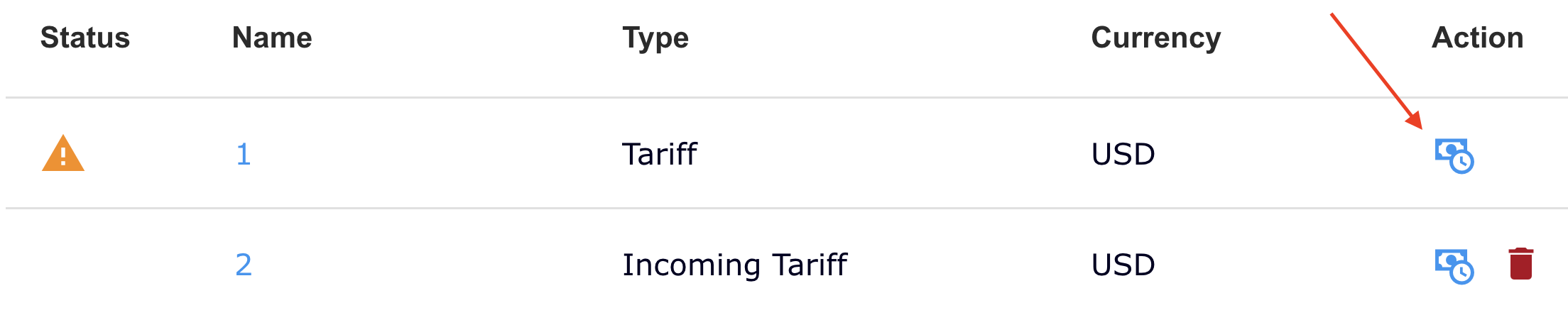
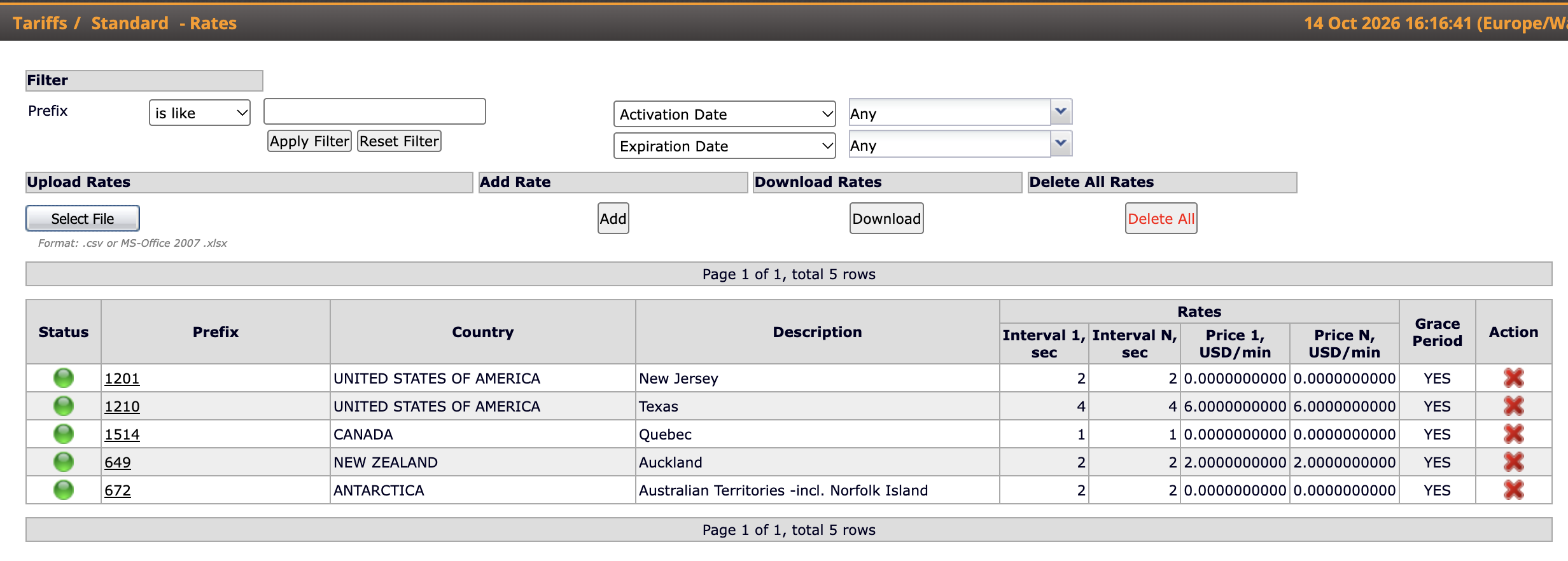
This opens the Rates page associated with that Tariff, where you can add, update, or delete Rates individually, or upload a file containing multiple Rates. Rates page is shown below:
Method 1: Individually
When adding, updating, or deleting one or a small number of Rates, it is sometimes efficient to do so individually.
To add a new Rate, select "Add" under the Add Rate section associated with the Tariff. Enter the desired values, including a Prefix. Multiple Rates can share the same Prefix, provided their validity periods do not overlap. For example, the Prefix "1604" refers to the geographic region Vancouver, British Columbia, Canada.
Activation Date specifies when the Rate becomes active. Expiration Date specifies when the Rate stops being active.
When you are done, select Save & Close. The Rate you add will be listed in the Rates page associated with the Tariff.
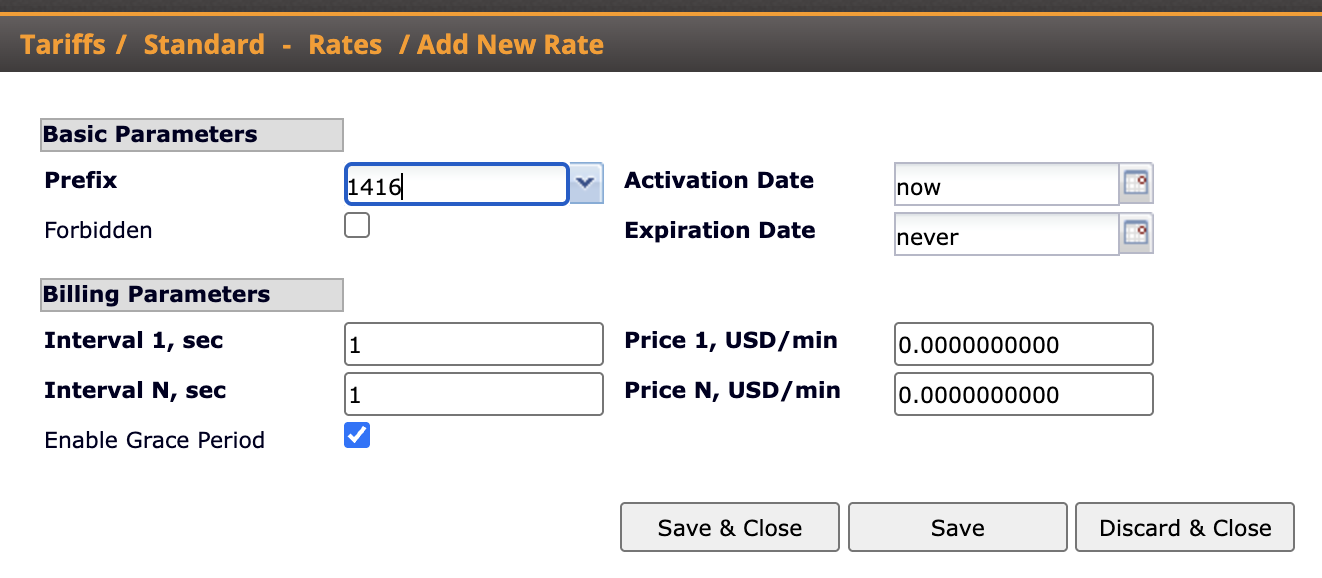
To update an existing Rate, locate the Rate you wish to update. On the row associated with that Rate, select the Prefix under the Prefix column, which appears as a link. Update the desired values. If multiple Rates share the same Prefix, their validity periods must not overlap. When you are done, click Save & Close. The Rate will be updated, and you will return to the Rates page associated with the Tariff.
To delete an existing Rate, locate the Rate you wish to delete. On the row associated with that Rate, click on the red X under the Action column. The Rate will be deleted, and you will return to the Rates page associated with the Tariff.
Method 2: Uploading a File - Your Rate Deck
As an alternative to adding, updating, or deleting Rates individually, it may be more convenient to do so by uploading a file containing Rates, especially when a large number of Rates is involved. The two main file types you can use to upload the Rates and desired values are (a) Microsoft Excel [.xls] files and (2) Comma-separated value [.csv] files.
To begin, go to the Rates page associated with the Tariff. Under the Download Rates section, select "Download" to download the .xls file, e.g., "[Tariff Name] Rates.xls". Once downloaded, open the file using a spreadsheet application, e.g. Microsoft Excel. The spreadsheet displays the Rates associated with the Tariff (shown below): each Rate is displayed on a row and is associated with a unique ID automatically generated by the system. By modifying, saving, and uploading the spreadsheet, you can add, update, and delete a large number of Rates all at once.

Action [A|D|U|S|SA]
Entering "A" adds a new Rate. Entering "U" updates an existing Rate by Id, and "D" deletes an existing Rate by Id. Entering "S" updates the currently active Rate matching the specified Prefix. Entering "SA" updates that Rate if found; otherwise, it attempts to add a new Rate. See below for details.
Id
The unique Rate Id is automatically generated by the system when a new Rate is added. For the U (Update) and D (Delete) actions, the Id of the existing Rate must be provided.
Prefix
The Prefix identifies the phone number prefix to which the Rate applies. Multiple Rates may use the same Prefix, provided their validity periods do not overlap.
Country
The country is automatically generated by the system according to the associated Prefix. You do not need to enter a value but if you do, the system will ignore it.
Interval 1
This must be a non-negative integer corresponding to Interval 1, sec under the Billing Parameters section when adding or updating a Rate individually (see above).
Interval N
Must be a positive integer greater than 0, corresponding to Interval N, sec in the Rate's Billing Parameters.
Price 1
Must be a non-negative decimal number, corresponding to Price 1 in the Rate's Billing Parameters.
Price N
Must be a non-negative decimal number, corresponding to Price N in the Rate's Billing Parameters.
Forbidden
This must be either "0" or "1", corresponding to the Forbidden checkbox under the Basic Parameters section (when adding or updating a Rate individually - see above). A "0" indicates that the geographic region associated with the Prefix is not forbidden, i.e., permitted. A "1" indicates that the associated geographic region is forbidden.
Grace Period
This must be either "0" or "1", corresponding to the Enable Grace Period checkbox under the Billing Parameters section (when adding or updating a Rate individually - see above). A "0" indicates that the grace period is disabled. A "1" indicates that the grace period is enabled.
Activation Date
Specifies the date and time from which the Rate becomes active.
Expiration Date
Specifies the date and time from which the Rate is no longer active.
To add, update, or delete Rates, you will need to enter values under the Action [A|D|U|S|SA] ("Action") column associated with the row of the Rate you wish to add, update, or delete.
To add a new Rate for a given Prefix, insert a new row below the existing rows. In the new row, enter "A" under the Action column. You must enter values under each of the columns, except possibly the Id and Country columns. The Id column is automatically generated for the Rate by the system and the Country is automatically generated in accordance with the Prefix. When adding a Rate, make sure its validity period does not overlap with that of another Rate using the same Prefix.
To update an existing Rate by Id, enter "U" under the Action column of the Rate you wish to update. Update the desired values corresponding to that Rate, be careful not to edit the Id (because the system identifies a Rate by its Id, and editing the Id means that the system cannot identify the Rate you wish to update).
To update an existing Rate by Prefix, insert a new row below the existing rows. In this new row, enter "S" under the Action column and the Prefix you wish to update. In this case, the system selects the currently active Rate matching the specified Prefix, rather than identifying it by Id. This method of updating a Rate (by identifying it by its Prefix rather than by its Id) is useful when you have a long list because you can update Rate values corresponding to the Prefix without knowing its Id.
To add a new Rate for a given Prefix or to update the existing Rate associated with the Prefix, insert a new row below the existing rows. In this new row, enter "SA" under the Action column. You must enter values under each of the columns, except possibly the Id and Country columns (since the Id is automatically generated for the Rate by the system and the Country is automatically generated in accordance with the Prefix). The system attempts to update the currently active Rate matching the specified Prefix. If no currently active Rate is found, it attempts to add a new Rate. The new Rate's validity period must not overlap with another Rate using the same Prefix.
To delete an existing Rate, enter D under the Action column. The Id must identify the Rate to be deleted.

When you are done adding, updating, or deleting Rates in your spreadsheet, save the file. On the Rates page associated with the Tariff, look for the Upload Rates section, and click "Choose File". Select the saved Rates file, and then select "Upload".
If your modifications have been successfully made, a dialog box will appear indicating the number of rows processed, commands recognized, and records added, updated, and deleted. Click OK.

If your modifications have not been successfully made, the system prompts you to open or download (depending on your internet browser's specifications) a .xls file detailing the errors found in the Error Message column associated with a Rate. In this case, correct the errors found in the saved Rates file and upload the corrected file.
