
Password Policies
Password Policies define password length, required characters, expiration, and other web-login rules. You can assign a policy to an Account, Customer, or Vendor. For Accounts, length and content rules apply to both Web and VoIP passwords.
Viewing policies
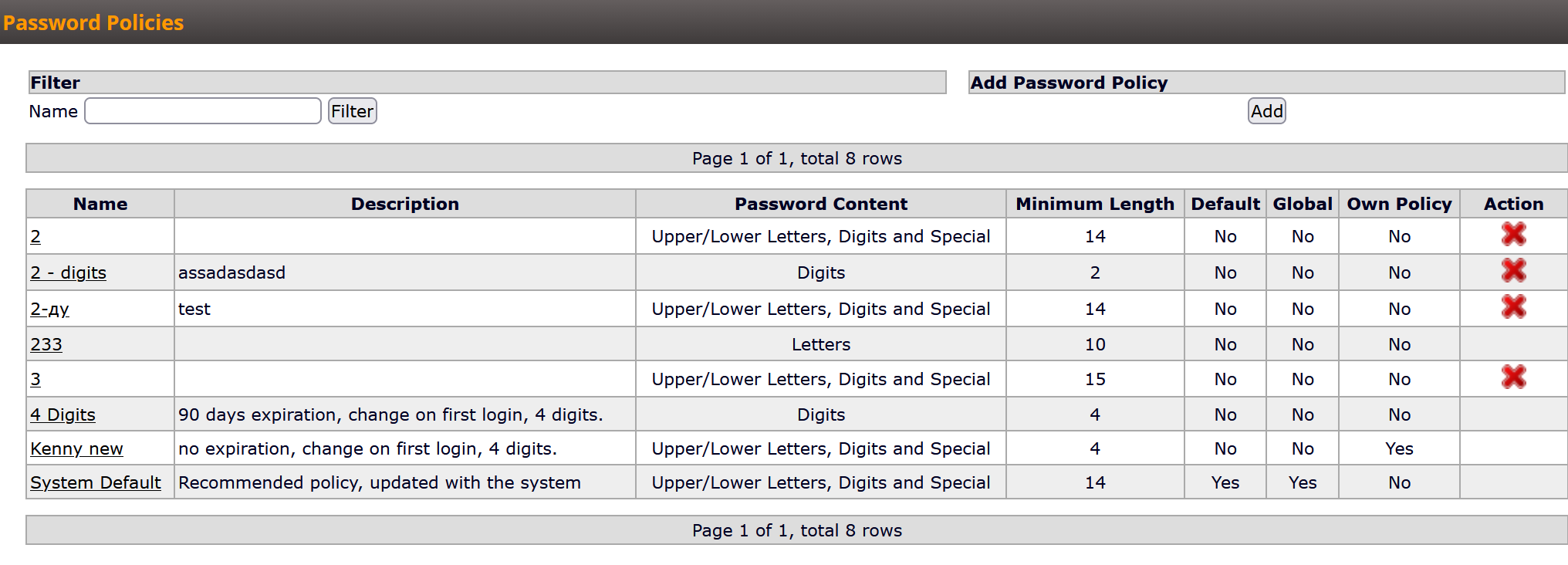
Open Customers > My Customers > Password Policies. Use the Name filter to find a policy, then click its name to view or edit it.
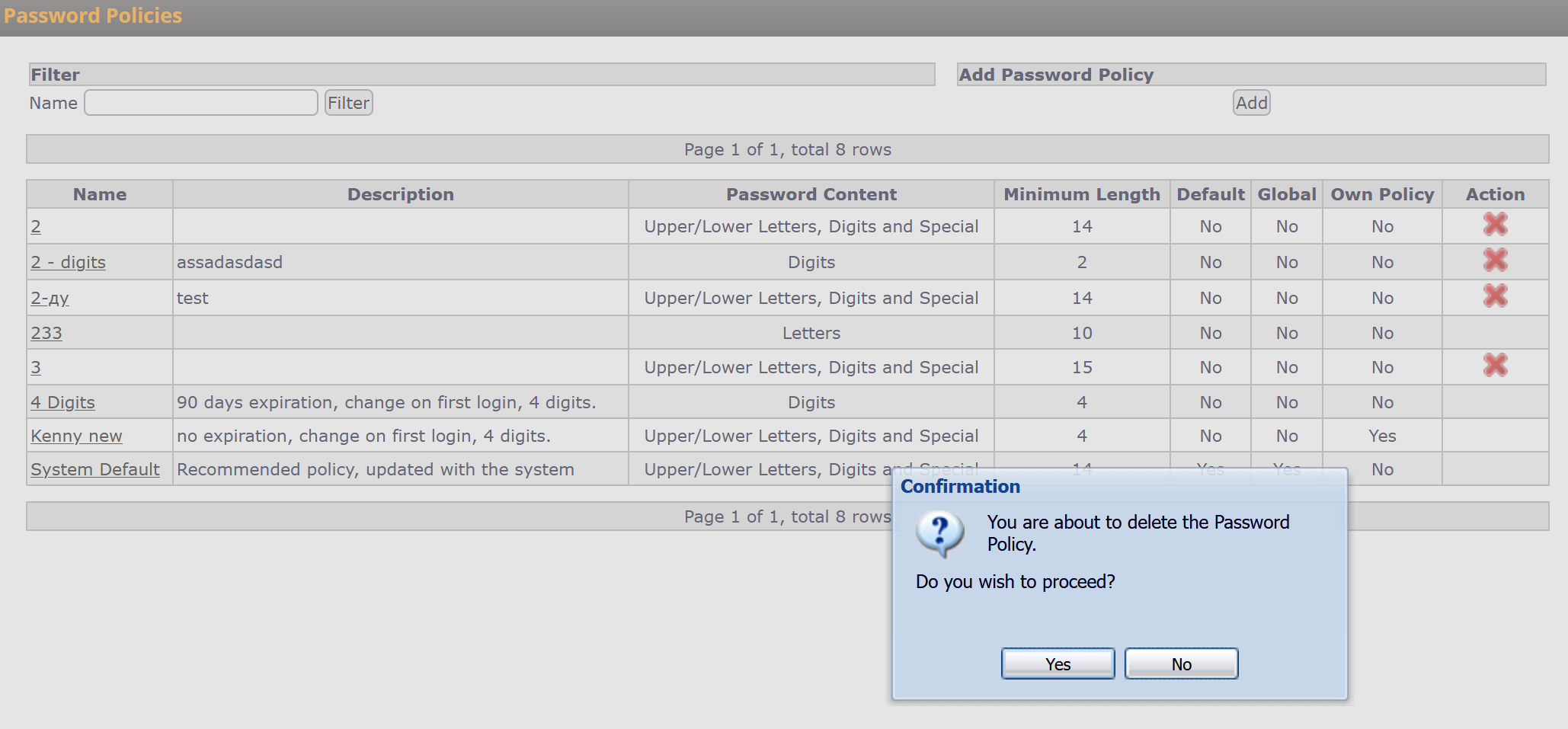
The list shows each policy's name, description, password content, and minimum length. Two indicators have separate meanings:
- Default - The policy used automatically for new Accounts, Customers, and Vendors.
- Own Policy - The policy assigned to your Customer for its own passwords.
Global policies are available to other Customers, but only their owner can edit them. The Global column is shown only to root. The system policy cannot be edited or deleted.
Creating a policy
- Click Add on the Password Policies page.
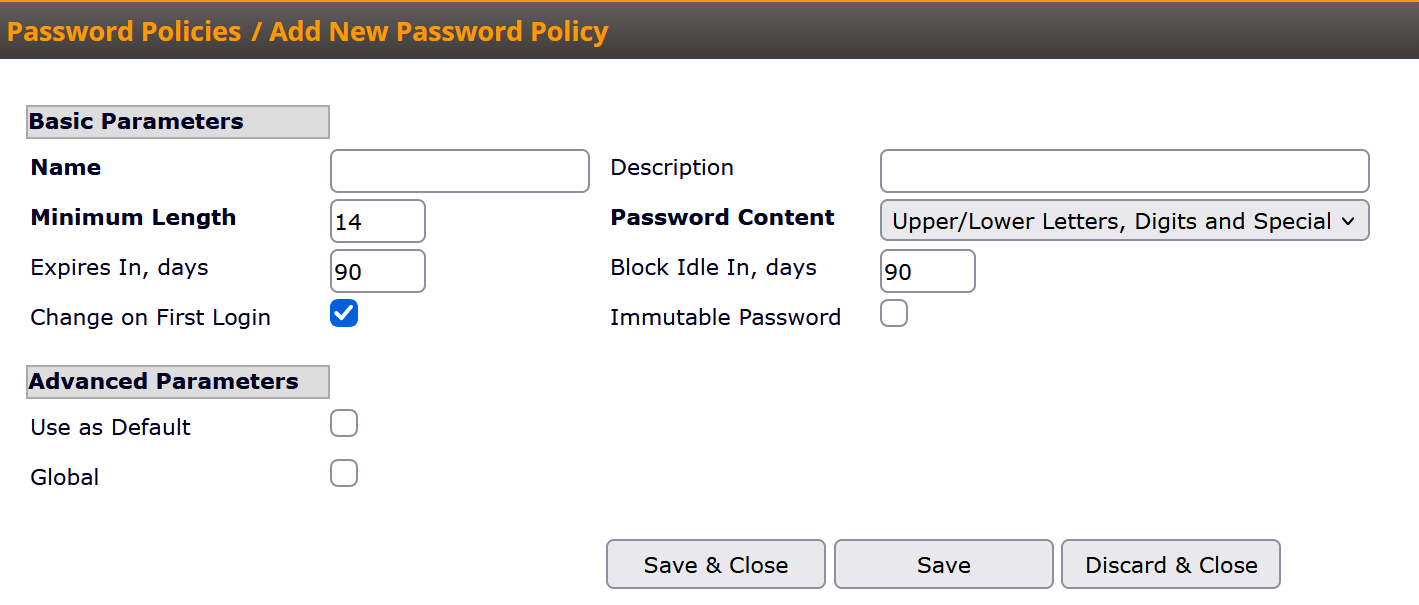
- Enter a unique Name and an optional Description.
- Set the password rules below. The form initially copies the rules from your current default policy.
- Click Save & Close to return to the list, or Save to stay on the form.
Basic Parameters:
- Minimum Length - From 1 to 32 characters. Passwords cannot exceed 32 characters.
- Password Content - Required character types, described below.
- Expires In, days - Require a web-password change after this many days. Leave empty to disable.
- Block Idle In, days - Restrict web login after inactivity if the password has not been changed since the last login. Leave empty to disable.
- Change on First Login - Require a web-password change on first login.
- Immutable Password - Prevent users from changing their own passwords through self-service preferences.
Password Content choices:
- Letters and Digits - At least one letter and one digit.
- Letters - At least one letter.
- Digits - At least one digit.
- Any Characters - No additional character requirements.
- Upper/Lower Letters, Digits and Special - At least one of each.
These options specify required characters; other character types are also allowed.
Advanced Parameters:
- Use as Default - Apply this policy to new objects. It replaces the previous default without changing existing assignments. If no local default is selected, your Customer's assigned policy is used.
- Global - Make the policy available to other Customers. Only root can set this option.
Editing a policy
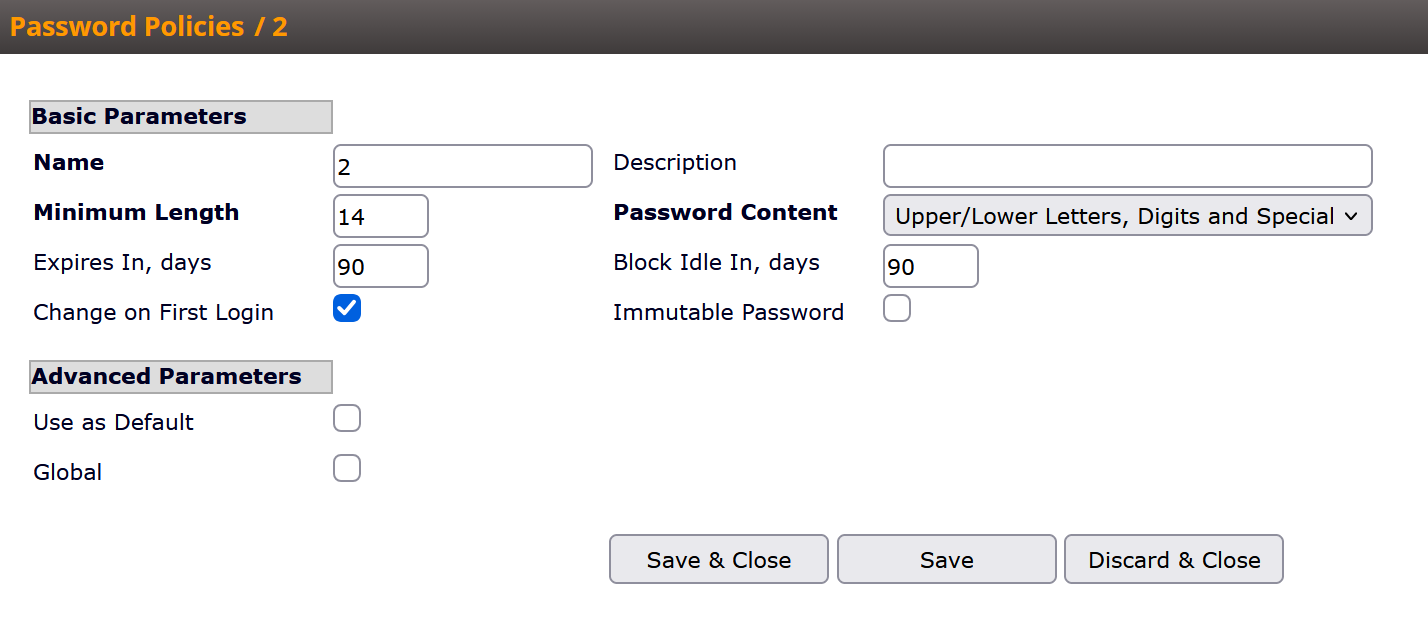
Click the policy's name, change the required fields, and click Save or Save & Close. Changes apply to all objects using that policy; existing passwords are not replaced.
Policies owned by another Customer and the system policy have disabled fields. Create your own policy if you need different rules.
Assigning a policy
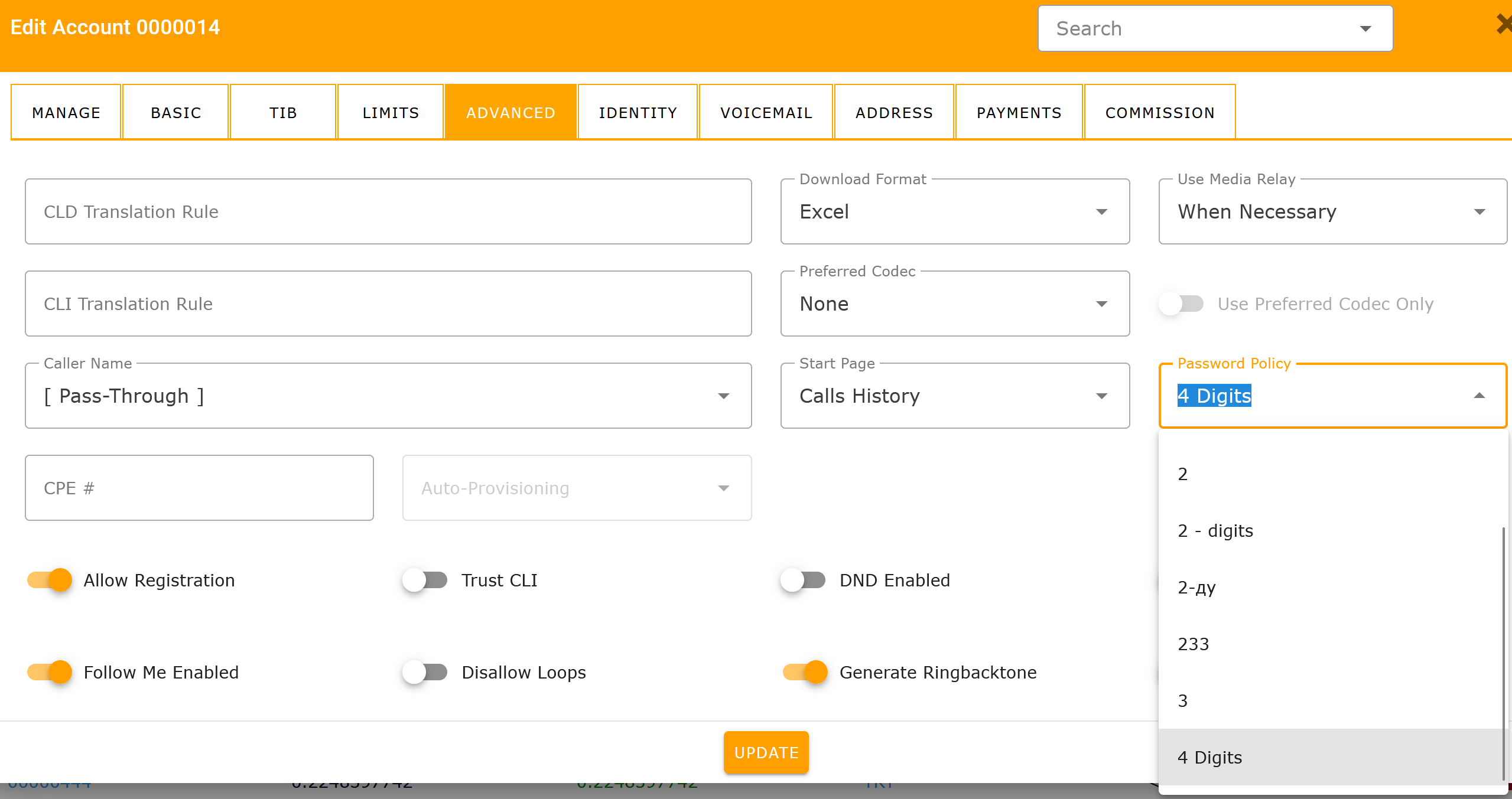
Open the object for creation or editing, select its Password Policy in the location below, and save. Any new passwords must meet the selected rules.
- Account - Open Customers > My Customers > Accounts. The selector is under Advanced Parameters.
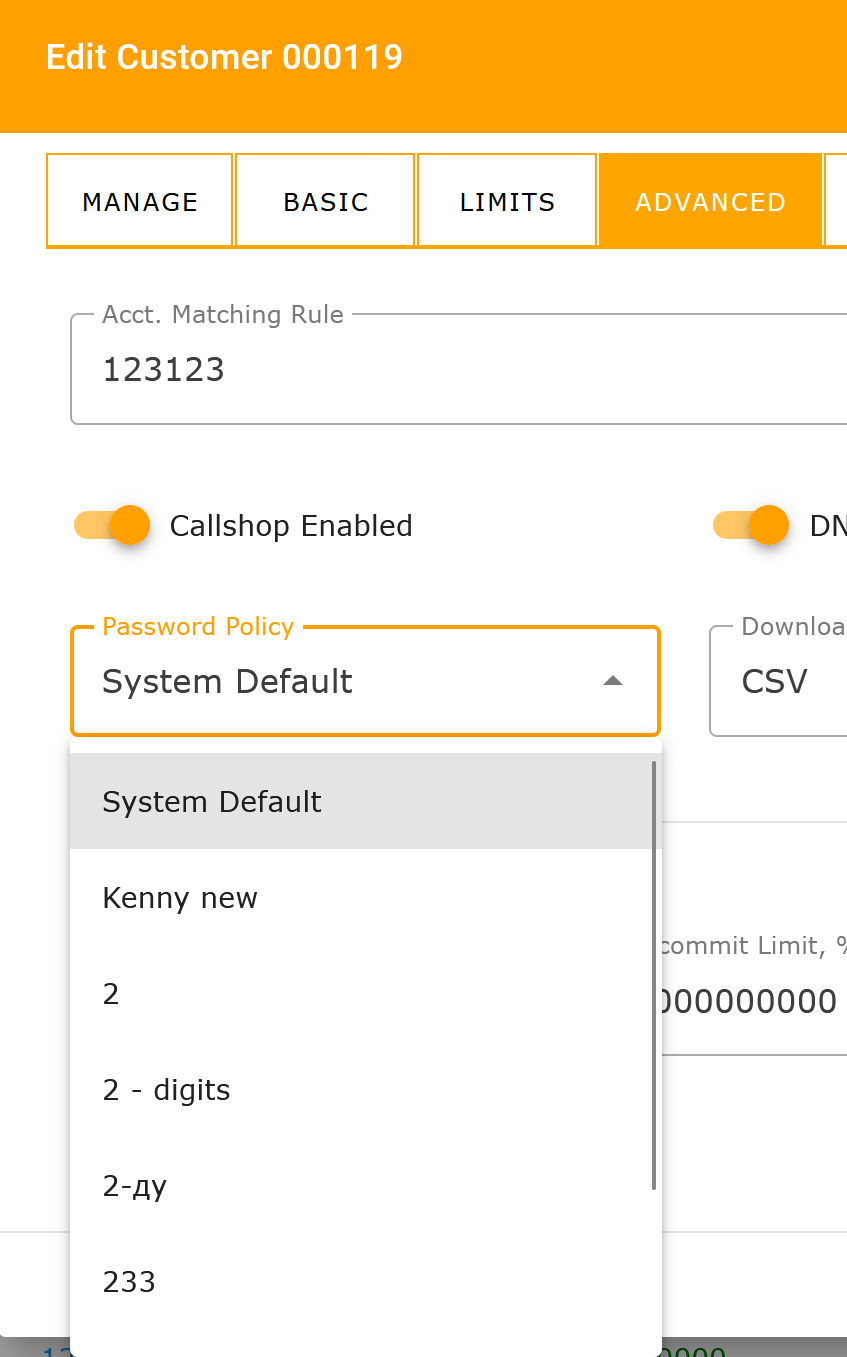
- Customer - Open Customers > My Customers > Customers. The selector is under Advanced Parameters.
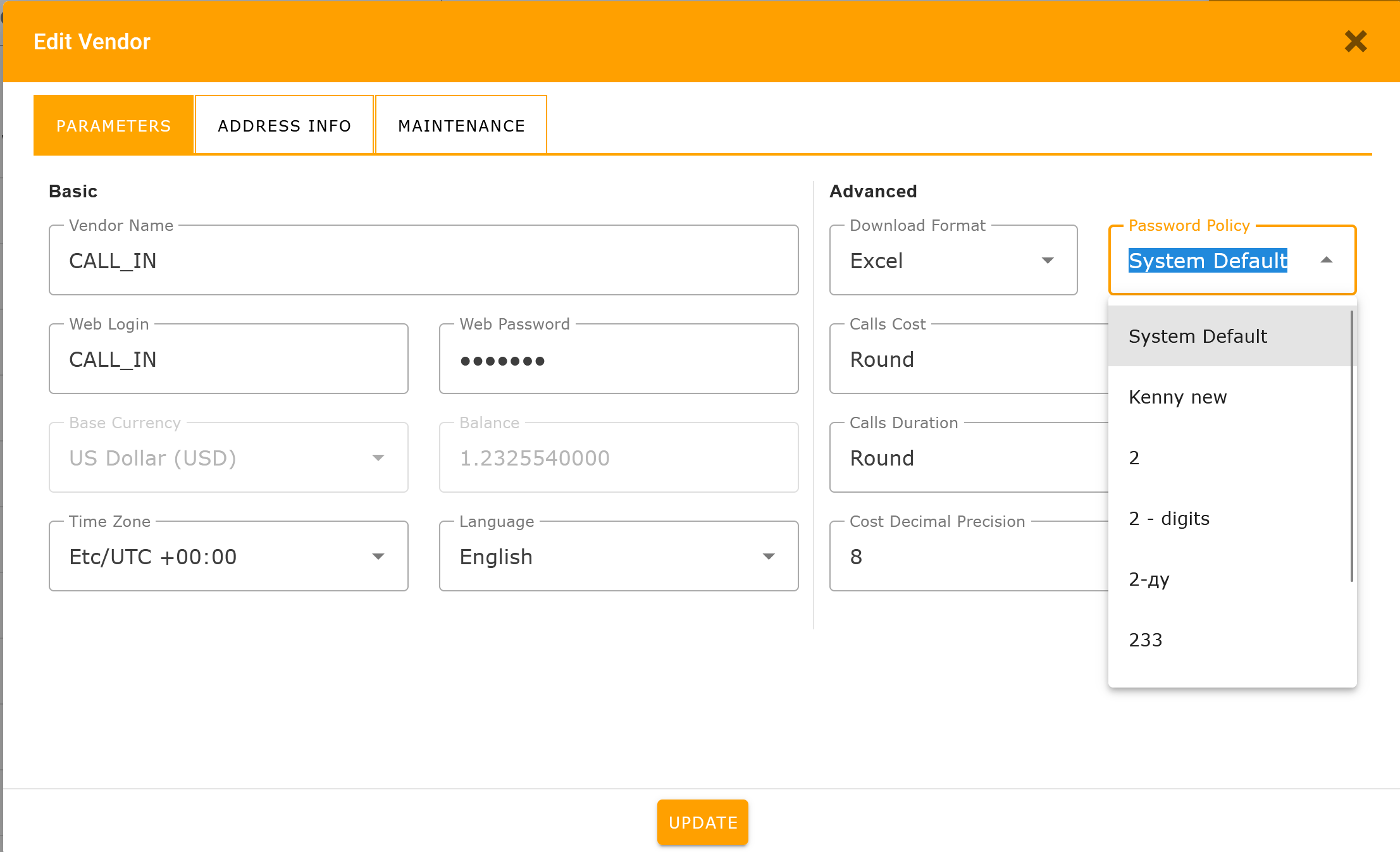
- Vendor - Open the Vendors list. The selector is on the Parameters tab.
Accounts UI
Customer UI:
Vendor UI:
Deleting a policy
- Reassign any Accounts, Customers, or Vendors using the policy to another policy.
- On the Password Policies page, click the policy's Delete icon.
- Click Yes in the confirmation dialog.
The Delete icon is available only for your Customer's unassigned, editable policies, subject to your permissions.
For API methods, see Password Policies XML-RPC API.